One sentence has settled into the language of SAP report requests over the past two years: “let me write what I want and have the system handle the rest.” The expectation is reasonable. What is wrong is assuming the sentence describes a single step.
A report is not only a query. Which tables join on which key, which field maps to which authorization object, which column is mandatory on the selection screen, how the output is totalled — those are separate decisions. A draft does not make all of them at once, and knowing which ones it does make is what saves the time.
What the design draft contains, and what it does not
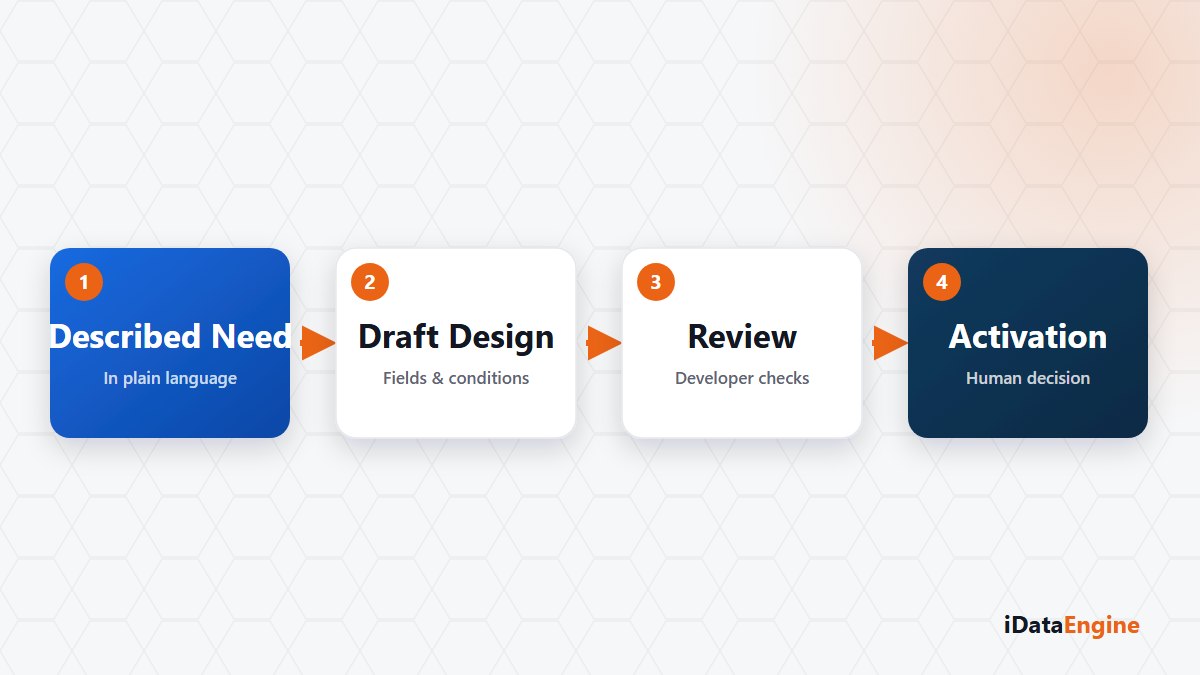
The assistant that works on an iDataView report definition starts from three inputs: your natural-language prompt, the current state of the definition on screen, and SAP catalog and field context. Knowledge chunks retrieved from a pgvector store can be added to that. What it produces is not free text but a list of permitted operations: add a source, add a field, suggest a join, make a field mandatory.
Those operations are applied to the design in the front end, and they stop there. Making them permanent means you complete the normal save flow. The assistant neither writes to the database nor pushes code into SAP.
Why the activation decision stays with a person
After the save, the chain runs like this. ABAP source and a text pool are generated from the design metadata, the package is sent to SAP’s save and activate flow, and a defined Y/Z transaction code is checked for format and for use in another definition before it is added to the request. Every link there depends on the target SAP system, the ERP user and the functions on that side.
The decision stays with a person for a practical reason. Field and table validation happens, but a rule such as “the discount is not calculated under this condition” is your organisation’s own knowledge, and a draft does not discover it. Join errors most often show up as row multiplication: the report runs, and a total quietly breaks.
A first half-hour test for the draft
One simple check is enough. Run the generated report with a narrow selection whose result you already know, then read the row count against an existing SAP report using the same selection. If the two numbers disagree, look first at the join definition and second at the default values on the selection screen.
Alongside that, AI keys and model call records are held per user or per customer. Treat that as governance data before it becomes a cost line: it shows which team uses the assistant for which kind of work, and it makes the scope decision discussable.
So set the expectation this way: the draft closes the empty page, and you make the call. If you would rather measure that than debate it, pick one report you commissioned last quarter, let us describe the same requirement in natural language, and mark together where the draft stops and where the developer takes over.