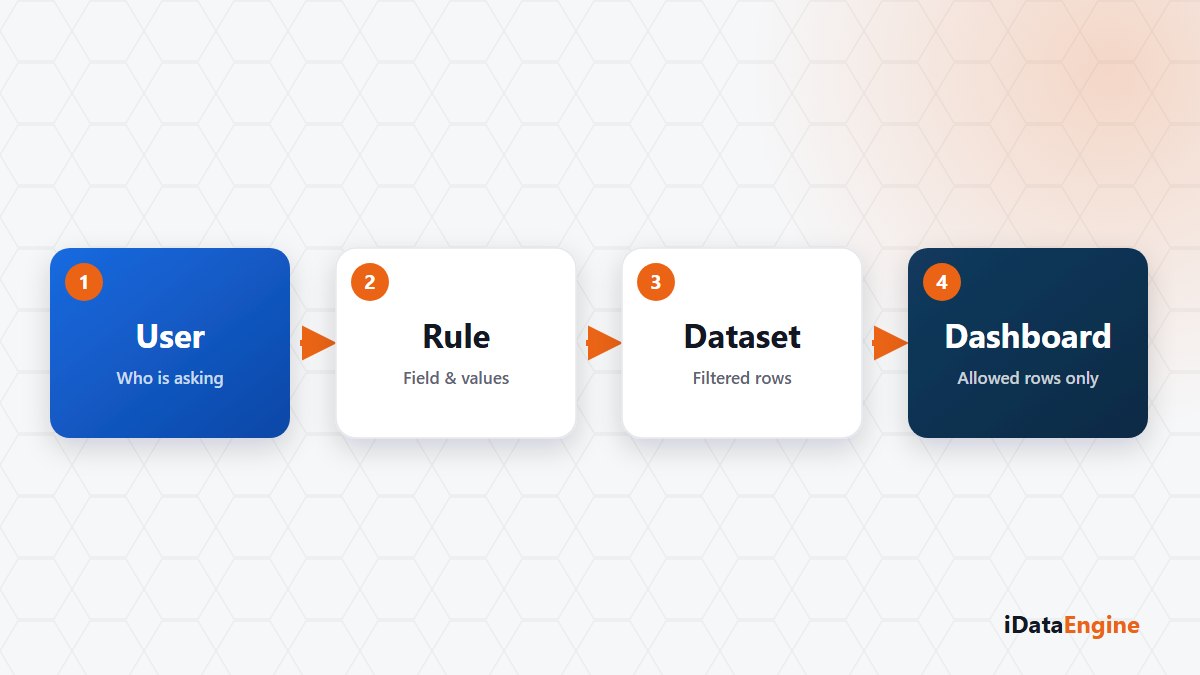
The question asked in an audit is usually plain: when the regional manager opens this dashboard, which rows do they see? If the answer is “their own region”, there has to be a mechanism behind it. “We set the filter that way” does not survive the follow-up question.
Self-service analytics does not mean everyone reaches every row. A plant manager is expected to see their own plant, a regional lead their own region. Solving that with a widget filter looks possible and is brittle.
A widget filter is not a boundary
A filter is a convenience. A user can change it, remove it, or rebuild it from a saved variant. Used as a boundary it disappears the first time someone clears it, and nobody notices, because clearing a filter leaves no record.
Authorization on the BI side therefore works at three separate levels. Folder and view level decides who can reach which content. Object level decides which data sources can be used. Data scope level applies the row boundary, through data values such as company code, plant or sales organisation.
How row scope enters the query context
Row-level authorization is added to the context of the widget’s data query, so a user changing a filter still cannot step outside the defined scope. The same access context is taken into account in the natural language data question flow, which means the scope does not shift when the question arrives through another channel.
To build it, authorization fields, authorization objects, roles, role hierarchies and role values are defined, and roles are assigned to users. Once that structure exists, adding a new user comes down to assigning the right role.
Fitting the role hierarchy to the business structure
- Decide which data value forms the boundary. In most organisations it is company code, plant or sales organisation.
- Define the authorization field and object, and link them to the relevant column of the source.
- Build roles around the business structure; role hierarchies reduce repeated definitions.
- Assign roles to users, then verify the assignments in the diagnostics screen.
- Open the same view with at least two different roles and compare the results side by side.
Skip the last step and the model is not finished. Looking at it from your own account usually means looking through a broadly authorised user, and that screen is not the screen anyone else sees.
Writing down the reason behind an authorization
Two situations come up often. Empty results: on a source with an authorization field, a user without the matching role gets nothing back and no error message, which is why the first check is authorization diagnostics. Share links: session-free sharing does not inherit the sharing user’s row-level authorizations, so test the outcome before exposing a view with a defined data scope that way.
Once the model is in place, the most valuable habit is recording why: which role reaches which data value, and on what grounds. Six months later, when a new region is added, that note beats rediscovering the role structure. It is also the exact question an auditor asks: who reaches what, and why?
One boundary worth stating plainly: an authorization control is a mechanism, not an absolute guarantee. A correctly built scope does not repair a wrongly assigned role, so reviewing assignments belongs inside the model rather than outside it.
The best week to build the model is the one before the first audit question. Pick the field that defines the boundary in your organisation — company code, plant, sales organisation — and start with a small two-role example; the rest is the same pattern repeated.